Sublime Text snippets speed up the code-writing process by providing a quick way to insert blocks of text that are frequently used in a project.
Why use snippets?
A well-designed text editor for code, markup, and writing. One of the fastest code editors for developers and one of the most popular and widely used.
I recently changed jobs, which has required a major adjustment: new coworkers to get to know, new training requirements, and a new development environment. But above all, there was a shift in programming languages—from neat and tidy Python to the more convoluted JavaScript.
Since I kept misplacing and omitting brackets, I was looking for something that would help me work quickly in this unfamiliar territory. Fortunately, I found a handy tool in Sublime Text called Snippets.
I love Sublime Text snippets because they reduce cumbersome blocks of code to just a few keystrokes. They’re easy to understand and write, making them a great tool for saving time and eliminating errors during development.
A snippet maps a trigger word to a predefined block of text, both of which you define. To invoke a snippet, type the trigger word and press the Tab key.
This simple action expands the trigger word into the displayed block of text—which contains exactly the right number of parentheses and semicolons, always in the correct order.
Creating a Snippet
To create a new snippet in Sublime Text 3, we need to do the following…
Create a snippet
Go to:
Tools -> Developer -> New Snippet…
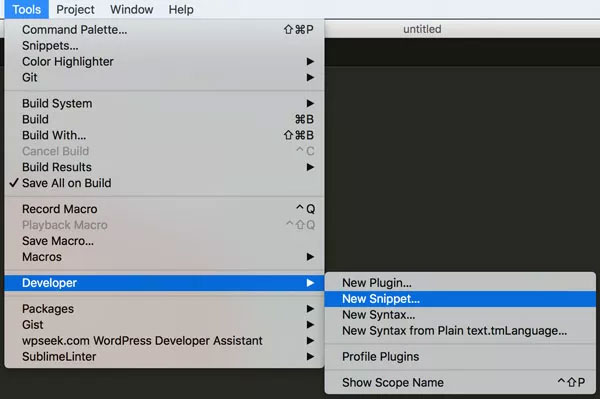
A new window will open containing a new snippet template, which we’ll go over below.

The Template in Sublime Text’s Snippets Tool
Sublime Text 3 snippets consist of four parts. Although only one part is required, it’s recommended to define all four.
1. Content (line 3): Required
<content><![CDATA[ Hello, ${1:this} is a ${2:snippet}.]]></content>Define the block of text that the snippet will expand by editing the line(s) between the <![CDATA[ and ]]>. The block of text that will be expanded when the snippet is invoked is now called the snippet’s content.
You will notice words surrounded by dollar signs, curly braces, numbers, and a number prefix. This optional markup indicates a field marker that controls the cursor position after the snippet is triggered.
After the content is expanded, the cursor automatically moves to the first field marker (${1:this} above). When you click the tab again, the cursor moves to the next numbered field marker or to the end of the snippet’s content if there are no more fields (see the PRO tip below).
The text following the colon in a field marker is optional. If specified, it is automatically selected as part of the cursor movement, meaning it can be deleted with a single quick gesture. This makes the text after the colon an excellent choice for values such as placeholder, which indicate that a value must be entered, or for optional default values, such as isRequired the field in the example below.
$0 (exit marker) to explicitly define where the cursor will exit after all field markers have been cycled through. This is useful if you want to rebind the Tab key to autocomplete after invoking a snippet. To do this, place the exit marker immediately after the first field marker, for example, like this: ${1:пример}$0.
2. Trigger word (line 6): Optional
<tabTrigger>hello</tabTrigger>This line is commented out by default.
Short, mnemonic trigger words work best. For example, the Babel React Snippet package displays componentWillMount on cwm and componentWillReceiveProps on cwr.
Trigger words are optional because there’s an alternative way to call snippets, which I’ll discuss below.
3. Scope (line 8): Optional
<scope> source: python </scope>This line is also commented out by default.
Scope refers to the limitation on where Sublime Text snippets can be invoked, which improves accuracy and prevents conflicts. For example, within a scope, the same trigger word can have different meanings for different programming languages.
This section describes how to define scopes for a long list of programming languages, but scopes are capable of much more. We’ll explore scopes in more detail below.
4. Description (line 10): Optional
<description> demo description </description>For some reason, the description tag does not appear in the snippet creation template. However, it can be useful to include one.
Sublime Text snippets appear in the autocomplete menu along with a descriptive phrase. Without a description, this phrase defaults to the snippet’s filename, which doesn’t guarantee sufficient context when multiple snippets share the same prefix.

Snippets appear in the autocomplete menu
Go to:
Preferences -> Keybindings
Add the following line to the “User” configuration file (of course, replace `cmd alt n` with whatever combination works best for you):
{ "keys": ["cmd alt n"], "command": "new_snippet" }Saving a snippet
After creating a snippet, be sure to save it in a file ending in “sublime-snippet,” i.e., with the .sublime-snippet extension.
On a Mac, user-created snippets are saved in:
~/Library/Application Support/Sublime Text 3/Packages/UserOn Windows, the path is as follows:
User > Library > Application Support > Sublime Text 3 > Packages > UserCreating and saving a new snippet via a menu item or keyboard shortcut will automatically suggest this location when saving.
Advanced Usage
We’ve covered four aspects of creating a static snippet. However, you can create dynamic Sublime Text snippets using environment variables that contain references to the context in which the snippet was invoked.
“Context” is a vague term, so please refer to the table of environment variables and their exact values in the Sublime Text Snippets Documentation.
As an example of how to use environment variables, my team follows a convention where a component’s stylesheet is saved with the same filename as the component and has the extension .scss.
The component file can then use this convention via a snippet by using the environment variable $TM_FILENAME.
<content><![CDATA[ import styles from './$TM_FILENAME${1:}scss']]></content>Environment variable $TM_SELECTED_TEXT or $SELECTION serves a more general purpose. Remember how I mentioned an alternative way to invoke snippets? Instead of clicking on a trigger word and pressing the Tab key, you can also invoke snippets via the command palette.
On a Mac, press Cmd+Shift+P to open the palette, type “Snippet,” and select the desired snippet from the drop-down list. This roundabout approach has one major advantage—you can call up a snippet with a block of text selected and include that text in the snippet’s content. This allows you to create so-called “wrapper” or external snippets that wrap around the selected text, for example, using an `if` statement.
Extended selection shortcodes are great for quickly selecting text that can be wrapped in snippets, as described above.
Extended Scope
We’ve discussed limiting snippets to specific source code files, but snippets often have a more specific context in which they are valid. For example, a method such as componentWillUpdate, usually only makes sense within the context of a component (class) definition, which is explicitly specified.
Including `meta.class.js` on line 8 means that the snippet is valid only in situations where the source code file being edited is a JavaScript file and the cursor is “inside” the class definition. If you tried to call the snippet in an empty JavaScript file, nothing would happen.
To take full advantage of scopes, you need to have some understanding of syntax, scopes, and scope selectors. These are nuances worthy of a separate article, so I’ll explain them with links to the documentation:
- The language syntax determines how the source code is divided into scopes.
- A scope is a designated section of text that corresponds to “units” of the programming language, such as class or function definitions. Every location in a source code file has a corresponding scope.
- Scope meta-elements are most relevant for code snippets.
- “query” scope selectors. Scope selectors are bound to actions (such as snippets or keyboard shortcuts) and are used to determine whether an action is applicable given the current scope.
The best way to learn about scopes is to play around with them. Move your cursor to different locations within the file and use the cmd+shift+p shortcut to bring up a pop-up menu displaying the corresponding scope.

Creating snippets takes just a few seconds. Yet they save much more time—not just the amount of code you have to type.
By providing a fast and reproducible way to expand content, snippets reduce the number of errors. They also eliminate hard-to-remember details, such as method names. All of this frees up your fingers and your brain to focus on what they want to do most: write great code.
